Your Phone in a Rental Car in Georgia: Bluetooth, CarPlay and Removing Data
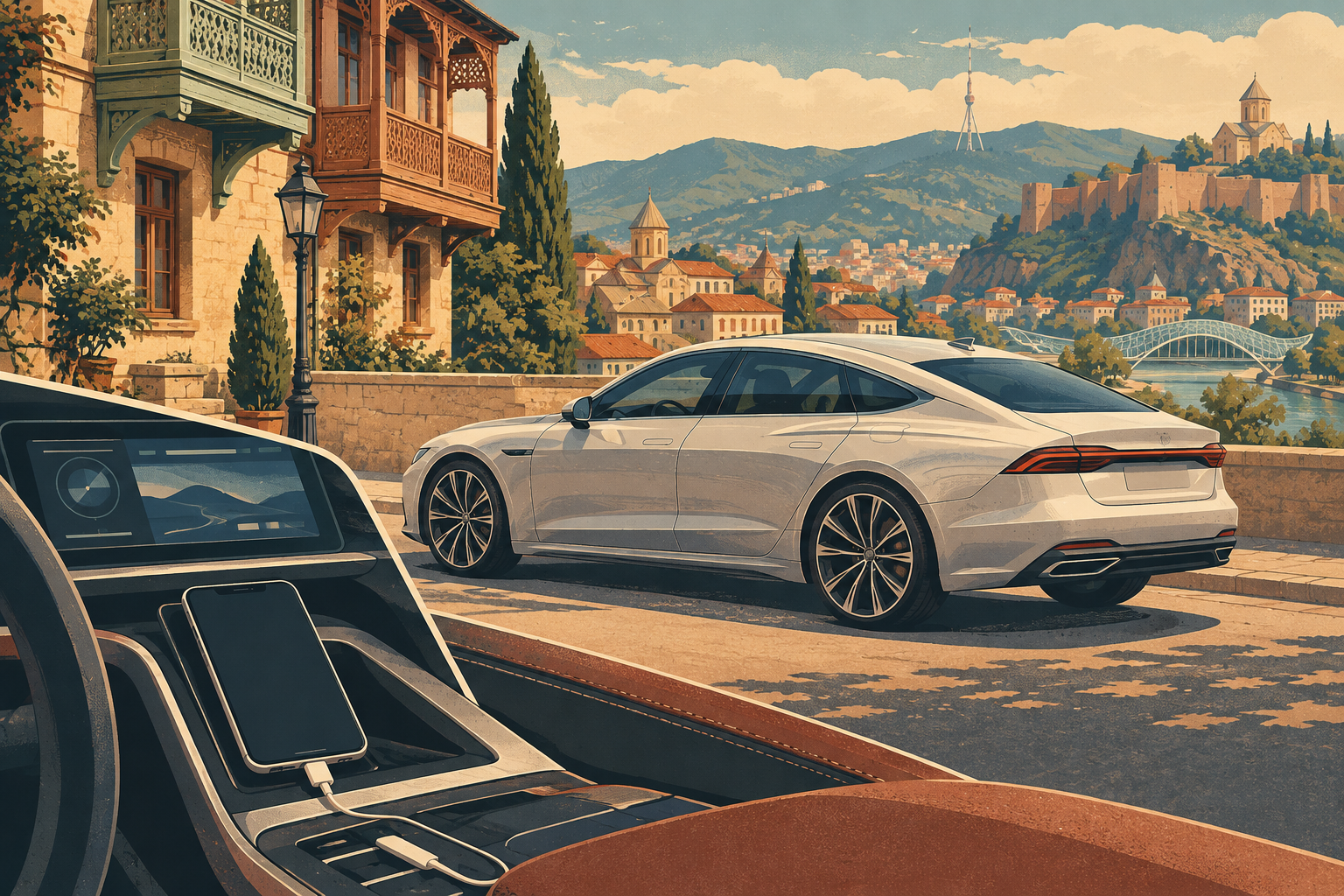
Familiar navigation audio and music can make an unfamiliar car easier to settle into. Set up your phone before driving, then remove your device and personal entries before returning the vehicle. When arranging car rental in Georgia for a trip between cities, confirm the connection method first. A premium badge alone does not guarantee CarPlay or Android Auto.
Questions to ask before booking
Tell the company your phone model, connector type and required functions: spoken directions, calls or a map on the car display. An Audi A7 in the sedan catalogue can be a starting point, but confirm the equipment in the actual vehicle. Ask whether the connection is wired or wireless and which cable to bring. A charging port does not necessarily support data.
If the phone cannot project its screen, ask about a secure holder and power supply. The holder should keep the device stable without blocking your view or interfering with controls. Sorting this out before collecting the keys makes renting a car in Georgia easier from the first journey.
Connect while parked
Stop in a safe place, apply the parking brake and ask for a demonstration of the connection menu. With Bluetooth, check that the pairing code matches on both screens and select the correct audio source. A Bluetooth connection for calls and music does not by itself put a map on the dashboard display.
For CarPlay or Android Auto, follow the instructions for your phone and the vehicle's system. Apple and Google explain compatibility and setup. A wired connection needs a suitable data cable. Wireless setup may require Bluetooth and Wi-Fi. Test a short spoken instruction while the car remains parked.
Review permissions
Read requests to synchronize contacts, messages or call history. Do not approve copying an address book simply because the prompt appears during pairing. Choose the functions you expect to use. If the system invites you to create a vehicle account or save your home address, consider whether that is necessary for a short rental.
Menu names vary with the phone version and the car. If the connection fails, check the cable and selected port with the company's representative. Avoid installing infotainment updates or changing other users' settings yourself. Premium car hire in Georgia is easier when the controls are understood before leaving, and setup should never become a task for the moving driver.
Before handing back the keys
- Remove your phone from the infotainment device list and delete any user profile you created.
- Look for imported contacts, call history and saved addresses. Remove your own entries using the available built-in controls.
- Remove the car from your phone's Bluetooth list. On an iPhone, also check Settings, General, CarPlay and the option to Forget This Car.
- Unplug the cable and check that your device is no longer shown as connected.
Removing the pairing on your phone does not replace clearing entries inside the car. If a menu is unclear, ask a staff member to help remove your information specifically. A complete factory reset without agreement could affect vehicle settings and other profiles.
Allow time for setup at collection and a final check at return. Confirm the equipment before requesting a rental car in Georgia. You can then start with a connection you understand and finish the trip without leaving personal entries or a forgotten cable behind.
Created on Jul 1, 2026 in Статьи
Your Phone in a Rental Car in Georgia: Bluetooth, CarPlay and Removing Data. Luxury car rental in Georgia at the best price. Book your car now ☎+995 579611111